Guide
How to download your Instagram data
To check your unfollowers privately, you need the data file Instagram itself gives you. It takes about two minutes to request, and Meta usually delivers it within half an hour. Follow the screens below — it’s the exact path, current as of 2026.
2 minutes of effort · 5–30 minutes of waiting
The #1 mistake: leaving the format on HTML
Instagram’s export defaults to HTML, which the checker can’t read. On the options screen (step 7), switch Format to JSON before starting. Already got an HTML export? There’s no way to convert it — just request a new one with JSON selected.
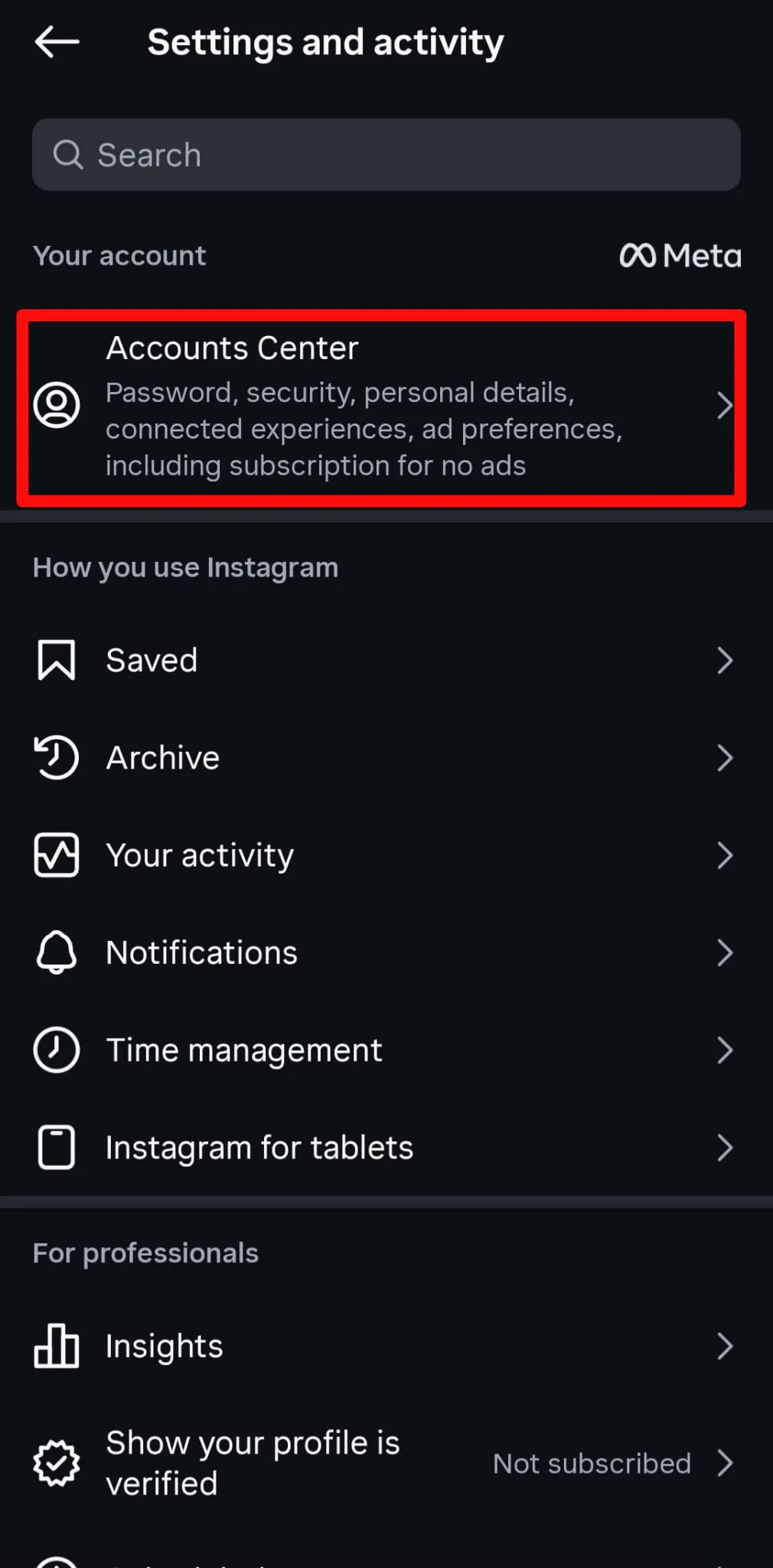
Step 1 / 10
Open Accounts Center
Saving the file on your phone
- iPhone: the file saves to Files → Downloads. You don’t need to open the ZIP — if you tap it in the Files app it self-extracts, and that’s fine too: the checker also accepts the extracted .json files.
- Android: the ZIP lands in your Downloads folder. In the checker, tap “Choose file” and pick it from Downloads.
- From a link inside Instagram: the in-app browser often breaks file uploads. Open this site in Safari or Chrome instead.
Troubleshooting
I can’t find the downloaded file
Check your email’s spam folder for Meta’s notification, or go back to Accounts Center → Export your information: your export appears under Available downloads with a Download button for about 4 days.
I have multiple Instagram accounts
Accounts Center lists every linked profile. Make sure you pick the right one in step 5 — exporting the wrong profile is the most common reason the numbers look off. The checker shows the detected username so you can double-check.
The export is taking forever
If you selected “All available information”, the export can take a day or more and reach gigabytes. Cancel it and request a new one with only Followers and following — that version is usually ready in minutes.
Got your file?
Drop it into the checker — Unfollowly analyzes it instantly, right on your device.
Open the checker